AI Gun Detection
The security cameras you already have can spot a gun, raise the alarm and save the clip.
Real-time gun detection using Frigate NVR with AI-accelerated video analysis on edge devices
Reusable Site Templates
Entrances and public areas already covered by IP cameras, where nobody watches every screen.
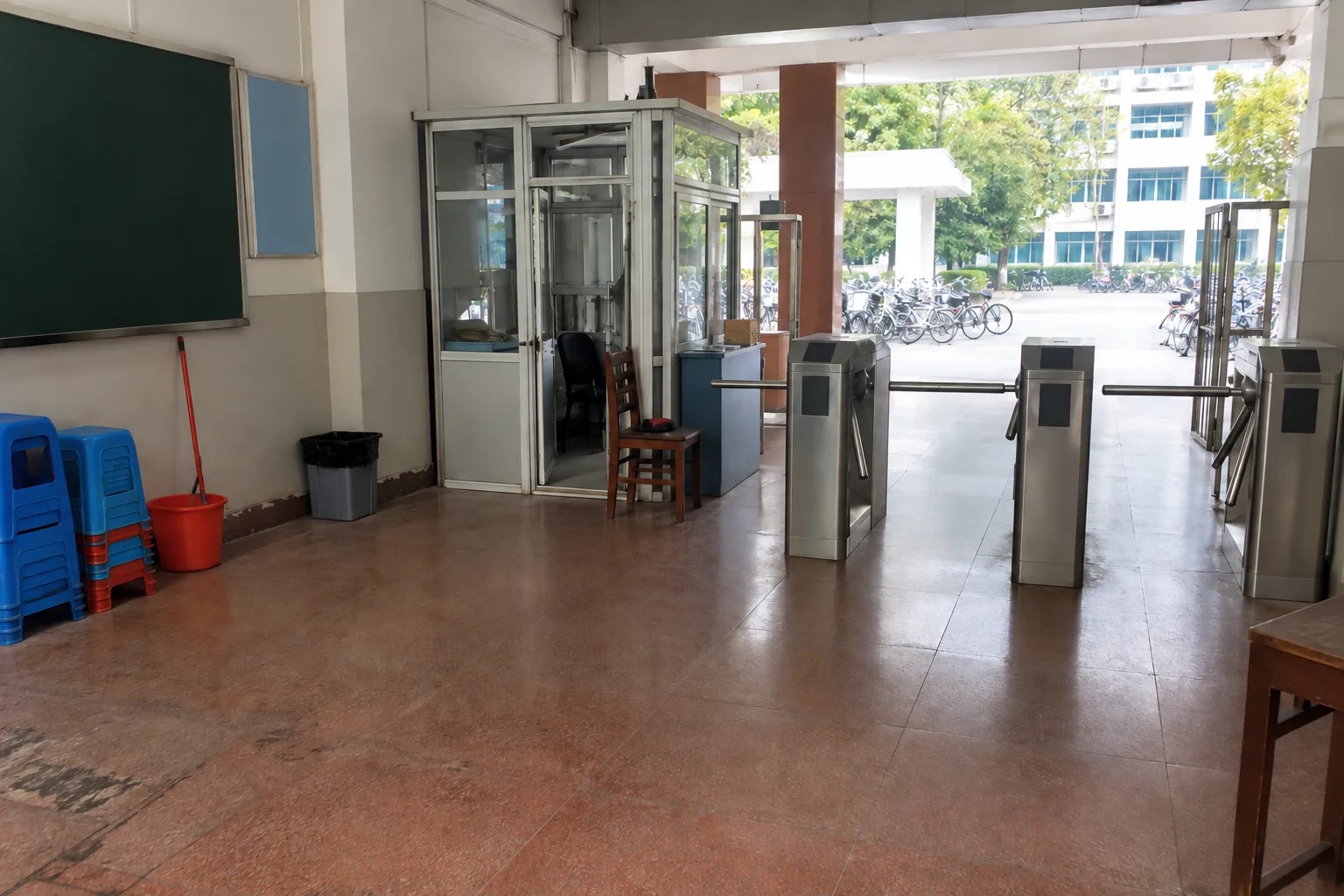
School entrances
School gates, teaching-block lobbies, dormitory entrances. A gun in view raises an alert.

Retail stores
Convenience-store checkouts, petrol-station shops. Each detection keeps a clip and a snapshot.
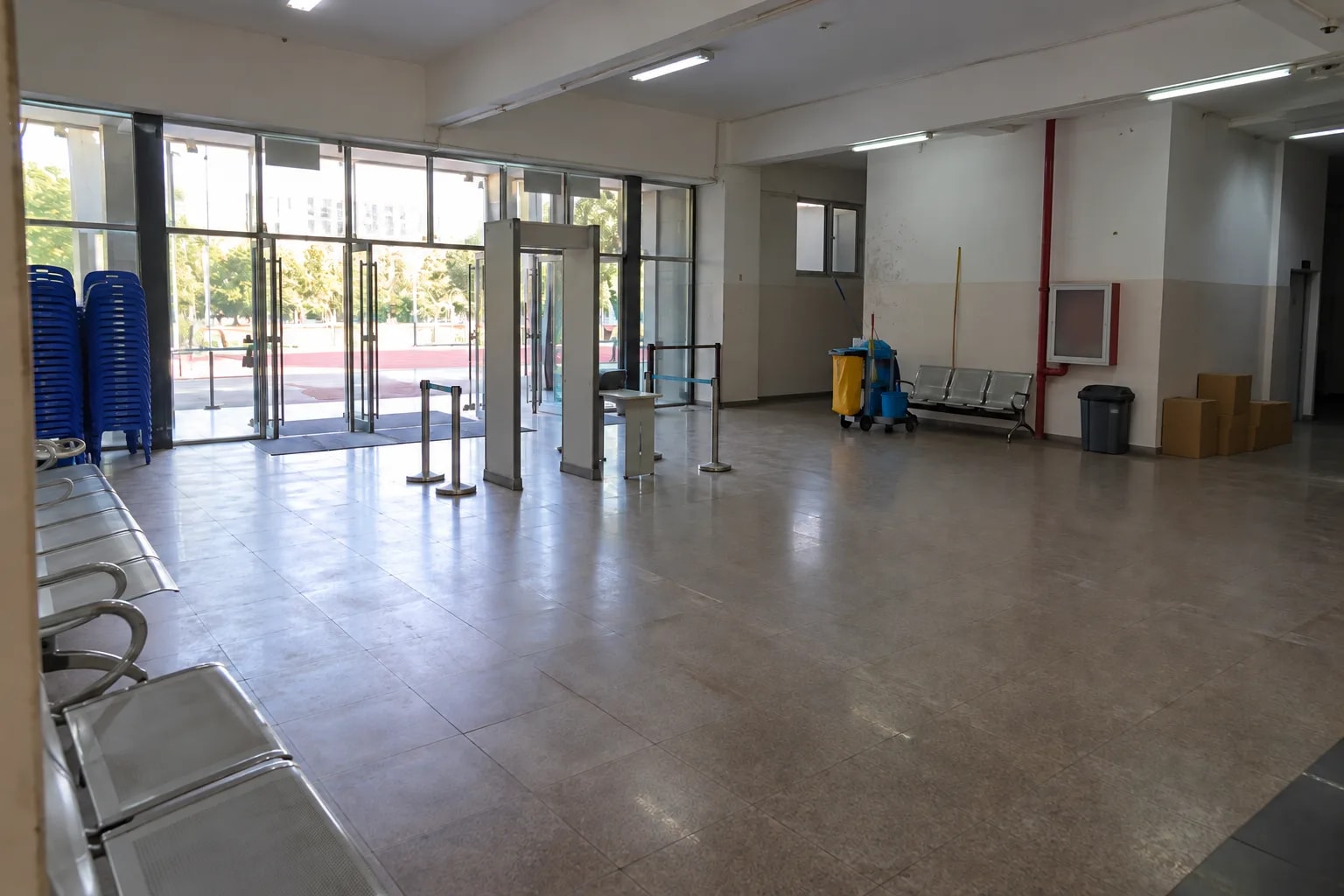
Offices and public venues
Office lobbies, stadium entrances, station waiting halls. Alerts reach the existing alarm system over MQTT.
Not a fit: replacing security staff, or serving as certified screening equipment. Validate on your own footage when the gun is small in frame, covered by a hand or clothing, or poorly lit.
How it works
Existing IP cameras provide the video, a detection host makes the decision, and alerts reach your receiving system and a browser dashboard.
Three parts: the IP cameras you already have, one edge AI host running Frigate, and whatever receives the alert. Video is analysed and recorded on the host, inside your network. What leaves the host is the dashboard page and the MQTT events.
Cameras
Any IP camera with an RTSP stream works — Hikvision, Dahua and generic ONVIF cameras all expose one. Nothing on the camera changes.
- Put the camera on the same network as the host.
- Use the low-resolution sub-stream for detection and the main stream for recording; this keeps host load down.
- Mount it at entrances and corridors, with a clear, stable view of the area.
The deploy form takes up to two RTSP addresses. More cameras are added later in the Frigate config file. Two looping demo videos ship with it, so detection is visible before any camera is connected.
Detection Host
One host runs Frigate, the gun model and the MQTT broker. The two presets differ only in the accelerator.
| Host | Accelerator | Model | When to pick it |
|---|---|---|---|
| reComputer J40 / J50 series | Jetson Orin GPU (TensorRT) | YOLOv4-tiny gun model | More cameras; J40 series is the default |
| reComputer AI Industrial R2135-12 | Hailo NPU | YOLO11s (person + gun) | A few cameras on a compact industrial box |
The Jetson preset needs Docker plus the NVIDIA Container Toolkit, and compiles the model on first start (5–10 minutes). The Hailo preset needs HailoRT 4.21.0 and at least 4 GB of free disk; the installer sets up the driver if it is missing.
Alert Output
Alarm and automation systems subscribe to the MQTT broker on the detection host, an NVR or video wall takes the camera streams the host re-serves, and operators open the dashboard in a browser. The data interface is listed under “What you get out of it” below.
How well it works
What the people on duty see and operate in a browser once it is running.
Measured results
Scope: capabilities and limits of the shipped configuration; the thresholds below are configuration values.
What it does: checks every frame of each connected camera on the host, draws a box with a confidence score, and saves a clip and a snapshot for each event. The Jetson model reports guns above a 0.3 score, the Hailo model above 0.25; both thresholds are adjustable.
Limits: detection depends on how large and visible the gun is in the frame. Validate missed detections and false alarms with footage from your own cameras before connecting alerts to a response process. This is an assistive alert, not a certified security product.
What you get out of it
Once deployed, everything is served from the host.
| Port | Content |
|---|---|
| HTTP 5000 | Frigate dashboard: live view, Birdseye, event list with snapshots and playback |
| MQTT 1883 | Frigate event messages when a gun is detected |
| RTSP 8554 | Camera streams re-served for other players |
Camera list, detection threshold and retention days (recordings 3 days, snapshots 14 days as shipped) live in config/config.yml on the host. Edit it and run docker compose restart.
How to deploy
Tell us about your site — we work out the hardware, then you connect the data and follow the steps.
Configure yours
Tell us about the site — we work out the hardware.
Camera Count
How many cameras will this site connect, including ones added later? Both setups analyse and record video on the host inside your network. The difference is how much room there is for more cameras.
Configure yours
Tell us about the site — we work out the hardware.
reComputer AI Industrial R21 + Hailo
For one or two cameras. Frigate runs a YOLO11s model (person + gun) on the Hailo NPU. Needs HailoRT 4.21.0 and at least 4 GB of free disk; the installer sets up the driver if it is missing.
硬件/物料名称 数量 型号/SKU 说明 reComputer AI Industrial R2135-12 1 114993595 - NVIDIA Jetson
For sites with more cameras or more to come. Frigate runs a YOLOv4-tiny gun model with TensorRT on the Jetson Orin GPU; the first start compiles the model on the device (5–10 minutes). Needs Docker and the NVIDIA Container Toolkit. The same deployment also supports the reComputer J50 series (AGX Orin).
硬件/物料名称 数量 型号/SKU 说明 reComputer Super J4012 1 114110314 -
FAQ
Yes, once installed. Frigate, the model and the MQTT broker all run on the host, so detection, recording and alerts keep working offline. The internet is needed only during deployment to pull images and models.
No. Video is analysed and recorded on the host inside your network. Only the dashboard page and MQTT events are served, and only to devices that can reach the host.
No public-dataset accuracy figure is published for this design; validate it with footage from your own cameras. It is an assistive alert, not a certified security or weapons-screening product, and it does not guarantee against missed detections.
The deploy form sets up two cameras, and more are added in the config file. Capacity depends on the host and the detection resolution. Use the sub-stream for detection and load-test with your own streams before sizing a site.
Yes. Any IP camera with an RTSP stream works, including Hikvision, Dahua and generic ONVIF models. Put the camera on the same network as the host and test the RTSP address in VLC first.
Subscribe to the MQTT broker on port 1883 of the host; Frigate publishes an event for each detection. The RTSP restream on port 8554 can feed an NVR or video wall, and the dashboard on port 5000 has event playback.
Frigate itself tracks any label the loaded model provides. Other objects need a model trained for them and a change to the tracked objects in the config file; the Hailo model already outputs person as well as gun.
Frigate is open-source under the MIT licence. The detection models carry their own terms; the Hailo preset uses a YOLO11s-based model, and Ultralytics YOLO models are AGPL-3.0 unless commercially licensed. Confirm model licences before shipping a product.
Didn't find your answer?
Contact Us
We Are Glad to Be Your Hardware Partner !