Campus-level BLE Beacon Positioning System
People and assets on one map, indoors and out.
Track assets and people indoors and outdoors on one map — BLE beacons inside, GNSS outside, with floor-plan georeferencing, geofence alarms and an offline basemap option.
Reusable Site Templates
Sites where people and assets move between buildings and yards, and you need to know where each one is at any moment.
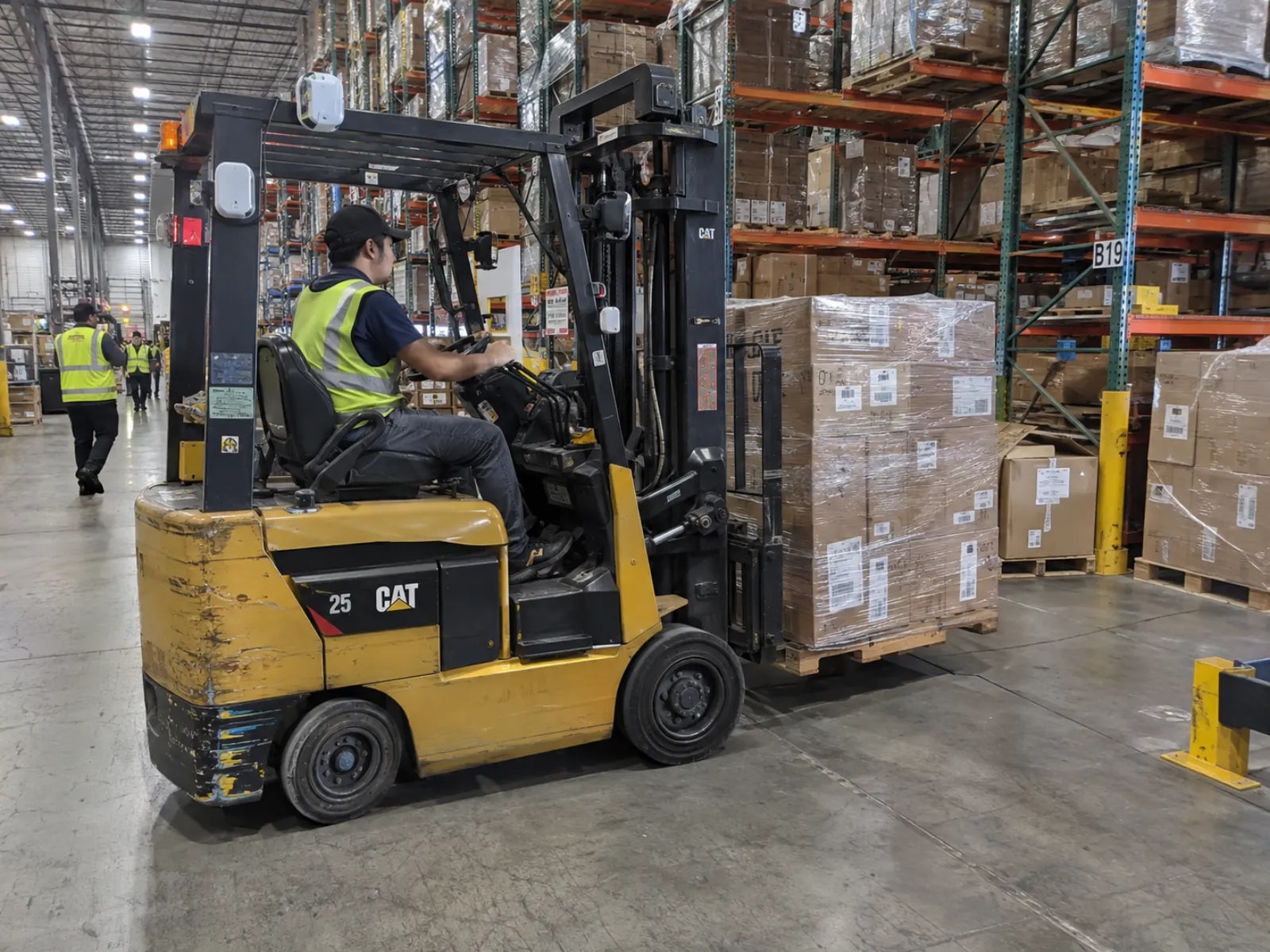
Warehouses and logistics parks
Racking aisles, yards and loading bays. Tags on forklifts and pallets read off one map.

Factory patrol and lone work
Chemical-plant patrol routes, night shifts in switchrooms. A badge with an SOS button logs route and time.

Care facilities and site perimeters
Activity areas in care homes, the fence line of a plant. Draw a fence, and entry or exit raises an alarm.
Not a fit: anywhere a late or missing position hurts someone, because this design carries no safety certification. Positions refresh on the tag reporting cycle, indoor accuracy depends on beacon layout, and tracker and gateway must share one regional band.
How it works
BC03 BLE beacons on the wall and a SenseCAP T1000 tracker on the person supply the position data, relayed by a SenseCAP M2 LoRaWAN gateway to a positioning service you host.
Three kinds of device on site: beacons that mark indoor positions, a tracker carried by the person or attached to the asset, and a LoRaWAN gateway that collects the uplinks. Everything after the gateway is software you host: the positioning application is a Docker image, and the dashboard is a page it serves.
Tracking Tag
The two devices whose quantity grows with the site. BLE beacons (BC03) are battery-powered indoor position references that stick to a wall; the T1000 tracker scans beacons indoors and uses its own GNSS outdoors. Areas covered by GNSS only need no beacons.
| Item | Nominal value | Where it comes from |
|---|---|---|
| Indoor accuracy, 3+ beacons per zone | 2–3 m | BC03 wiki |
| Indoor accuracy, 1 beacon per zone | Room level | Same |
| Mounting height / spacing | 2.5–3 m / 5–10 m | BC03 wiki recommended spacing; add beacons around metal shelving |
| Beacon battery life | 5+ years | BC03 wiki |
Beacon layout decides indoor accuracy more than anything else does. All four rows are nominal values from the layout practice and the datasheet, not measurements from this package.
LoRaWAN Gateway
One gateway collects the uplinks from every tracker in range and forwards them to a network server. If you already run LoRaWAN on site, the trackers join it like any other device.
| Item | Nominal value | Where it comes from |
|---|---|---|
| Gateway range | Up to 2 km, line of sight | SenseCAP M2 datasheet |
| Trackers per gateway | 100–200 in the same range | Gateway capacity; varies with uplink interval and region |
Pick the frequency variant for where the site is — US915, EU868, AS923 and the rest are different SKUs, and gateway and tracker must match. Both rows are nominal; the guide covers joining SenseCAP OpenStream or your own ChirpStack.
Positioning Service
A Docker image on a host you own, deployed locally or to a remote host over SSH. The application, its state and the dashboard stay inside your network. Tracker uplinks reach it through SenseCAP OpenStream or your own ChirpStack, and browsers and your own systems connect to the host directly.
The basemap is the one thing that may need the internet. A site with no internet builds a local PMTiles archive instead — build and load it once before committing. The bundled MQTT broker configuration is for bench use; put a broker with credentials in front of anything beyond the lab. The data interface is listed under “What you get out of it” below.
How well it works
What the person on duty sees and operates in the browser once it is running.
Measured results
Server-side capacity and latency baselines measured on a positioning host (reComputer J30 Series, arm64) using synthetic uplinks.
| Metric | Typical | Device | Deployment Note |
|---|---|---|---|
| 200 concurrent tags capacity | P95 828 ms (0% packet loss) | reComputer J30 Series | 30s reporting cycle, 800 uplinks continuous run in stable tier |
| 50 tags high-frequency tracking | P95 220 ms (0% packet loss) | reComputer J30 Series | 2s rapid update interval, ideal for critical workflow tracing |
| SOS emergency alert latency | P50 24 ms (P95 29 ms) | reComputer J30 Series | Uplink timestamp to frontend WebSocket broadcast latency |
A tag that stops reporting shows as offline after a fixed 15-minute threshold. For detailed benchmark records and fence tuning, see Engineering Wiki · BLE & LoRaWAN Positioning Solution.
What you get out of it
Once deployed, these are the interfaces. Everything is served by the positioning host on port 5173.
| Interface | Endpoint | Payload |
|---|---|---|
| WebSocket | ws://<host>:5173/ws | tracker_update with a position that is either {x, y, coordSystem: "metric"} or {lat, lon, accuracy, coordSystem: "wgs84"}; tracker_checkin / tracker_position_detection add a geofence block on enter / exit; also tracker_sos and tracker_offline |
| REST | GET/PUT /api/configuration/dashboard/maps/{mapName}/registration | Origin, rotation and scale. Admin session required; a guest session gets 403 |
| REST | POST /api/geofences, POST /api/events | Fence geometry (GeoJSON polygon, or a point plus radius) and the alarm rule that references it |
| LoRaWAN uplink | SenseCAP OpenStream, or a ChirpStack MQTT topic | Field mapping is in the deployment guide |
Branch on the coordinate-system field to tell indoor from outdoor, not on whether a latitude is present. The accuracy field is always empty on this hardware, so treat it as unknown rather than good. In geo mode the fence's own 3-points-in-10-s confirmation replaces the alarm rule's time range.
Porting It to Your Own System
The reusable unit is not "indoor positioning" — it is the chain position reference → LoRaWAN uplink → coordinate resolution → geofence rule → event out. Only one link is bound to BLE: how a set of observed beacons becomes a position. Everything after it works on a latitude and longitude regardless of their source.
| Layer | What porting costs you |
|---|---|
| LoRaWAN join, uplink ingestion, ChirpStack / OpenStream adapters | reuse as-is |
| Floor-plan georeferencing (origin, rotation, scale) | reuse as-is |
| Geofence engine: WGS84 polygon and circle, enter / exit, 3-point confirmation | reuse as-is |
| WebSocket broadcast, dashboard, offline detection | reuse as-is |
| Beacon-set → position resolution | rewrite for the new reference type |
| Indoor/outdoor hysteresis thresholds | retune against the new evidence source |
Same-shape designs fit: attendance from zone entry, patrol-route recording, cold-chain or yard dwell-time rules, and any "did this thing leave where it belongs" alarm.
Where this shape does not fit
- Sub-metre or per-shelf accuracy. BLE RSSI trilateration does not resolve that; UWB is a different radio, not a different threshold.
- Second-by-second tracking. The uplink interval bounds freshness, and LoRaWAN duty cycles bound the interval.
- Anything where a missed position has to mean "nothing moved". Uplinks are lossy and the design carries no safety certification.
How to deploy
Tell us about your site — we work out the hardware, then you connect the data and follow the steps.
Configure yours
Tell us about the site — we work out the hardware.
Indoor Area
How much indoor floor area needs metre-level positioning? Beacon count follows floor area, not the number of things you track. Yards, roads and parking are covered by GNSS and need no beacons.
Configure yours
Tell us about the site — we work out the hardware.
Starter Kit
Metre-level indoor coverage up to 500 m², plus outdoor tracking, georeferencing and geofences at no extra hardware cost — the T1000's own GNSS covers those.
硬件/物料名称 数量 型号/SKU 说明 SenseCAP BC03 Indoor Bluetooth Beacon 9 100085893 - SenseCAP LoRaWAN Card Tracker T1000-A trackers 114993073 - SenseCAP M2 LoRaWAN Indoor Gateway 1 114992981 - Standard Setup
23 beacons sized for 1250 m² at metre level, on a 7.5 m grid within BC03's recommended 5–10 m spacing. Same image, same features as the other two — only the beacon and tracker counts differ.
硬件/物料名称 数量 型号/SKU 说明 SenseCAP BC03 Indoor Bluetooth Beacon 23 100085893 - SenseCAP LoRaWAN Card Tracker T1000-A trackers 114993073 - SenseCAP M2 LoRaWAN Indoor Gateway 1 114992981 - Enterprise
36 beacons, sized for 2000 m², for a large campus or a multi-floor facility; add one per extra 56 m². Add beacons around metal shelving; one gateway still covers a nominal 2 km line of sight, so a second gateway is a coverage question, not a capacity one.
硬件/物料名称 数量 型号/SKU 说明 SenseCAP BC03 Indoor Bluetooth Beacon 36 100085893 - SenseCAP LoRaWAN Card Tracker T1000-A trackers 114993073 - SenseCAP M2 LoRaWAN Indoor Gateway 1 114992981 -
Or compare them yourself: preset specificationsDeployment Guide · 60min →
Hardware Equipment List by Preset
| Setup | Role | Device | Qty |
|---|---|---|---|
| Starter Kit | LoRaWAN Gateway | SenseCAP M2 Multi-Platform LoRaWAN Indoor Gateway | 1 |
| BLE Beacons | SenseCAP BC03 Indoor Bluetooth Beacon | 9 | |
| T1000 Tracker | SenseCAP T1000 LoRaWAN Card Tracker | 1 | |
| Standard Setup | LoRaWAN Gateway | SenseCAP M2 Multi-Platform LoRaWAN Indoor Gateway | 1 |
| BLE Beacons | SenseCAP BC03 Indoor Bluetooth Beacon | 23 | |
| T1000 Tracker | SenseCAP T1000 LoRaWAN Card Tracker | 3 | |
| Enterprise | LoRaWAN Gateway | SenseCAP M2 Multi-Platform LoRaWAN Indoor Gateway | 1 |
| BLE Beacons | SenseCAP BC03 Indoor Bluetooth Beacon | 36 | |
| T1000 Tracker | SenseCAP T1000 LoRaWAN Card Tracker | 10 |
Technical Specifications & Implementation Comparison
| Preset | Indoor area | Beacons | Trackers | Best for |
|---|---|---|---|---|
| Starter Kit ⭐ | Up to 500 m² | 9 | 1 | A small office, or a first working setup |
| Standard Setup | 500–2000 m² | 23 (sized for 1250 m²) | 3 | A medium warehouse or a factory floor |
| Enterprise | 2000 m² and up | 36 (sized for 2000 m²) | 10 | A large campus, multi-floor facilities |
All three run the same application image and the same feature set. Outdoor tracking, georeferencing and geofences need no extra hardware beyond the T1000's own GNSS — the presets differ only in beacon and tracker counts, that is, in how much indoor floor area gets metre-level coverage. Beacon counts assume a 7.5 m grid, the middle of BC03's recommended 5–10 m spacing: about 56 m² per beacon, floor area ÷ 56 rounded up, and never fewer than 3 per zone. For a larger site, add one beacon per 56 m².
Every preset also needs one LoRaWAN gateway; pick the frequency variant for the region the site is in. Difficulty is rated intermediate and the deployment is 7 steps; upstream estimates about 60 minutes.
FAQ
Nominally 2–3 m with three or more beacons per zone, and room level with a single beacon. Those are BC03 wiki values for this beacon layout, not measurements from this package.
A hysteresis state machine, not a manual toggle. A tracker goes outdoor after 3 GNSS fixes within 20 s with no configured beacon seen for 15 s, and returns indoor after two consecutive scans that each see 2 or more configured beacons. Downstream, branch on the coordinate-system field rather than on whether a latitude is present.
Positioning does — the application, its data and the dashboard run on a host you own. The outdoor basemap pulls OpenStreetMap tiles by default. A site with no internet builds a local PMTiles archive, documented in the guide.
One or two gateways cover a typical site, at a nominal 2 km line-of-sight range and 100–200 trackers each. Beacons set indoor resolution — one per zone gives room level, three or more give metre level. GNSS-only areas need no beacons.
Yes. The application ingests uplinks from SenseCAP OpenStream or from a ChirpStack MQTT feed, with the field mapping for both in the deployment guide. Gateway and tracker frequency variants must match your region.
Neither the SenseCAP nor the ChirpStack uplink carries a GNSS accuracy value on this hardware. The geofence engine lets a missing accuracy pass, so the buffer band falls back to the fence boundary. Treat a null accuracy as unknown, not as good.
A fence is a WGS84 polygon, or a point plus a radius, alarming on enter, exit or both. Confirmation needs 3 consecutive points within 10 s, which keeps a tracker on the fence line from producing a stream of alarms. No beacon has to be inside the fence.
You set an origin, a rotation and a scale, stored server-side. The projection is a local tangent-plane approximation, meaningful within roughly 2 km of the origin and refused above 85° latitude. In a numerical sweep the worst-case error within 2 km at latitudes up to 60° was 0.21 m.
Didn't find your answer?
Contact Us
We Are Glad to Be Your Hardware Partner !