Build Your Space AI Agent
Recognises people walking in, with the conversation live on a big screen.
Turn SenseCAP Watcher into your voice and vision AI agent — voice dialog, proactive wake-up, and on-device face recognition
Reusable Site Templates
Indoor spaces where people come and go, need to be recognised, and the conversation is worth showing to everyone present.
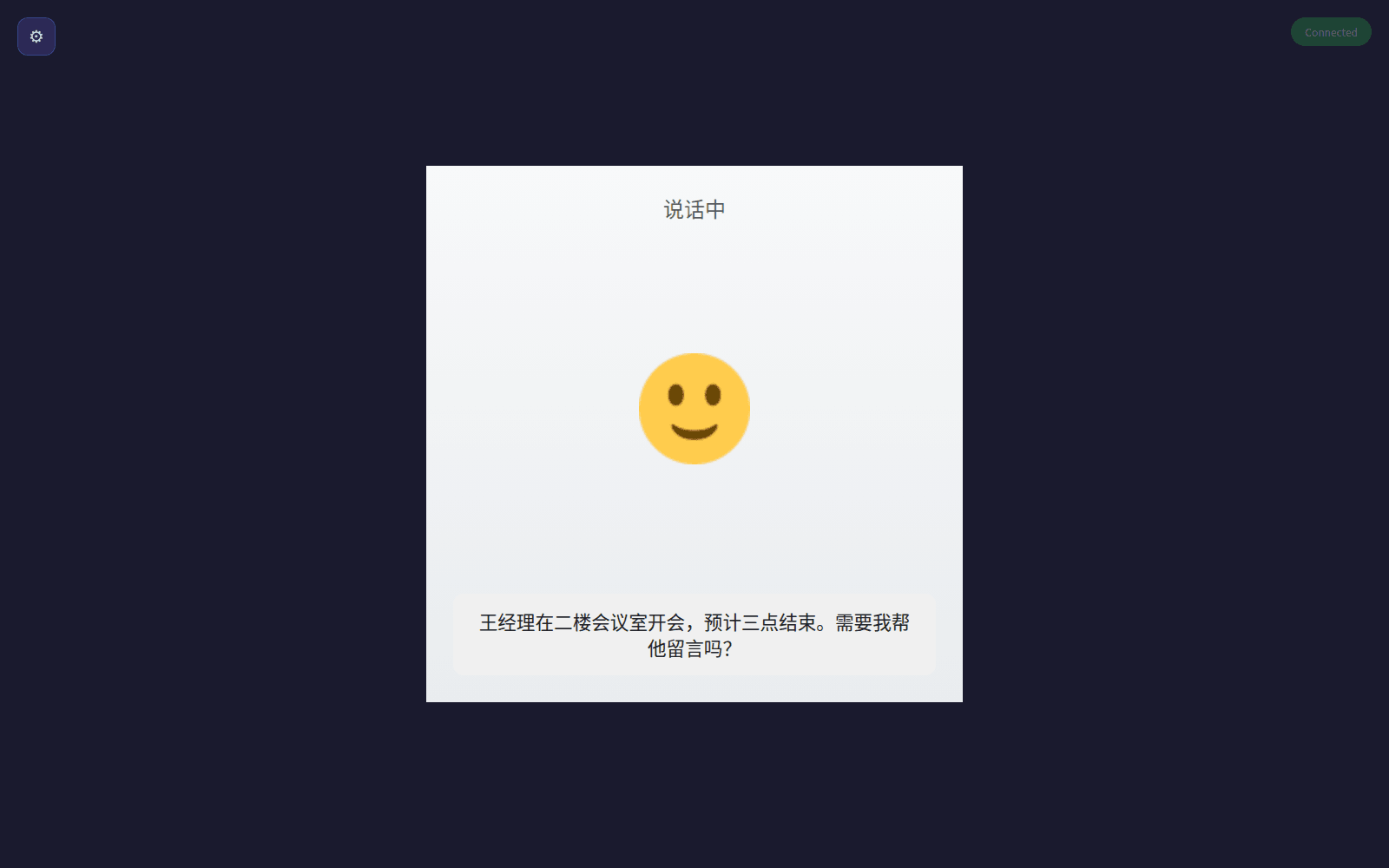
Home entryway and living room
Family members are greeted by name at the door, strangers flagged. With the display page open, greetings and answers land on the TV.
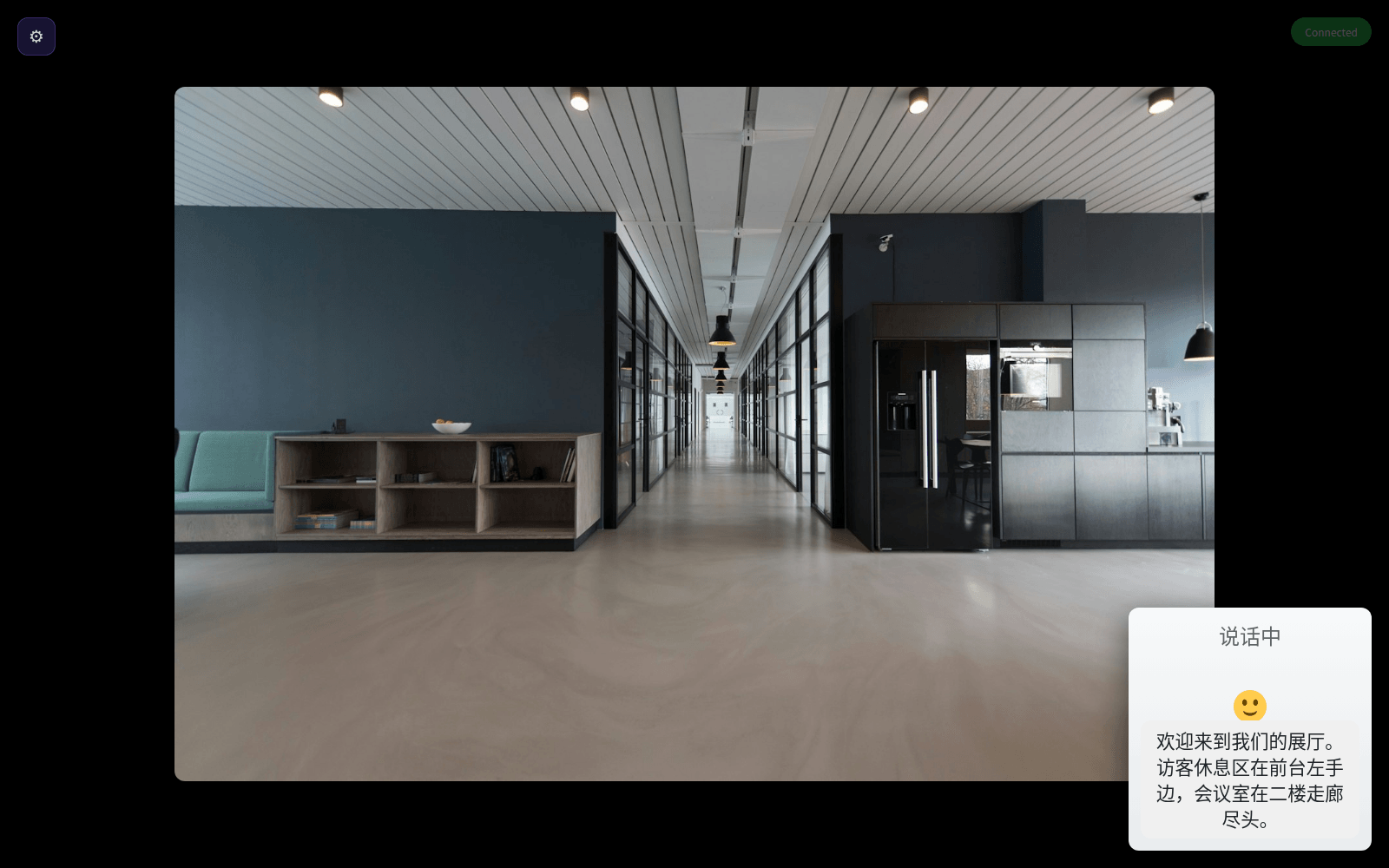
Front desk and showroom welcome area
Registered visitors are recognised and greeted by name; narrate mode shows the showroom commentary with backdrop images for everyone present.
Meeting rooms and work areas
Colleagues are greeted in the morning. The display service installs on the host behind the screen and opens straight in a browser.
Not a fit: dim light or side profiles only, and places that need to know more than 20 faces.
How it works
A SenseCAP Watcher or a reTerminal D1001 provides the voice and face entry point, the display service runs on a reComputer on the same network, and the conversation shows on an HDMI big screen.
Three things: a voice terminal with a camera, an optional display host, and an HDMI screen. Face recognition happens inside the terminal, and the face list stays on the device.
Voice Terminals
Two terminals; the choice comes down to whether you need a touch screen.
| Terminal | Screen | How it recognises people | Fits when |
|---|---|---|---|
| SenseCAP Watcher | Small round screen | On-device AI chip, up to 20 people | Desks and front desks; an existing Watcher only needs new firmware |
| reTerminal D1001 | 8-inch touch screen | Wakes when it sees a face; an optional remote recognizer wakes for known people | Wall or counter; Wi-Fi setup, subtitles and choices on screen |
Placement decides recognition: normal indoor light, at face height, facing people head-on. Side views and dim light reduce accuracy.
Display Host
Only the Display Cast package needs these: a host that runs Docker, plus an HDMI screen.
- Host: reComputer R10 Series (R1100), or a computer you already have. The display service needs no AI compute.
- Screen: a TV or monitor. Open the display page in a browser and press F for full screen.
- Network: terminal and host on the same local network. The terminal finds the screen by name — say "cast to living room display".
Screen & Browser
- Large screen: HDMI to the display host; the display page opens in a browser on the same local network.
- D1001 push panel: any browser on the same local network opens it on the D1001.
- Face list: a computer connects to the terminal over USB and manages it from the deployment page.
The data interface is listed under What You Get below.
How well it works
What visitors and the front desk see on the big screen once it is running.
Measured results
The capabilities and conditions below come from the deployment guide; they are not a field accuracy test.
| Capability | Conditions and limits |
|---|---|
| Recognise a registered person and greet them by name | Up to 20 people; normal indoor light, frontal face |
| Enrol a new person | About a 5 s capture in front of the camera |
| Show the conversation on a large screen | Terminal and display host on the same network; HDMI screen |
| Face wake (D1001) | Wakes when it sees a face; recognising known people needs a separate recognizer |
Face recognition and display casting install separately and do not affect each other. Recognition degrades in dim light and on side views, so it is not a basis for access control or attendance.
What you get out of it
Once deployed, these are the ways in.
| Entry point | What you get |
|---|---|
| Voice | Wake word "Xiaozhi Xiaozhi"; greetings by name and answers; voice commands turn recognition on or off, delete a person, answer "who do you know" and switch familiar mode |
http://<host-ip>:8765 | Display page: live conversation, full screen, narrate mode |
http://<D1001-ip>:8080 | D1001 push panel: text and images, on-screen choices, camera snapshot |
| Face list panel (deployment page, over USB) | Enrol, list and delete faces |
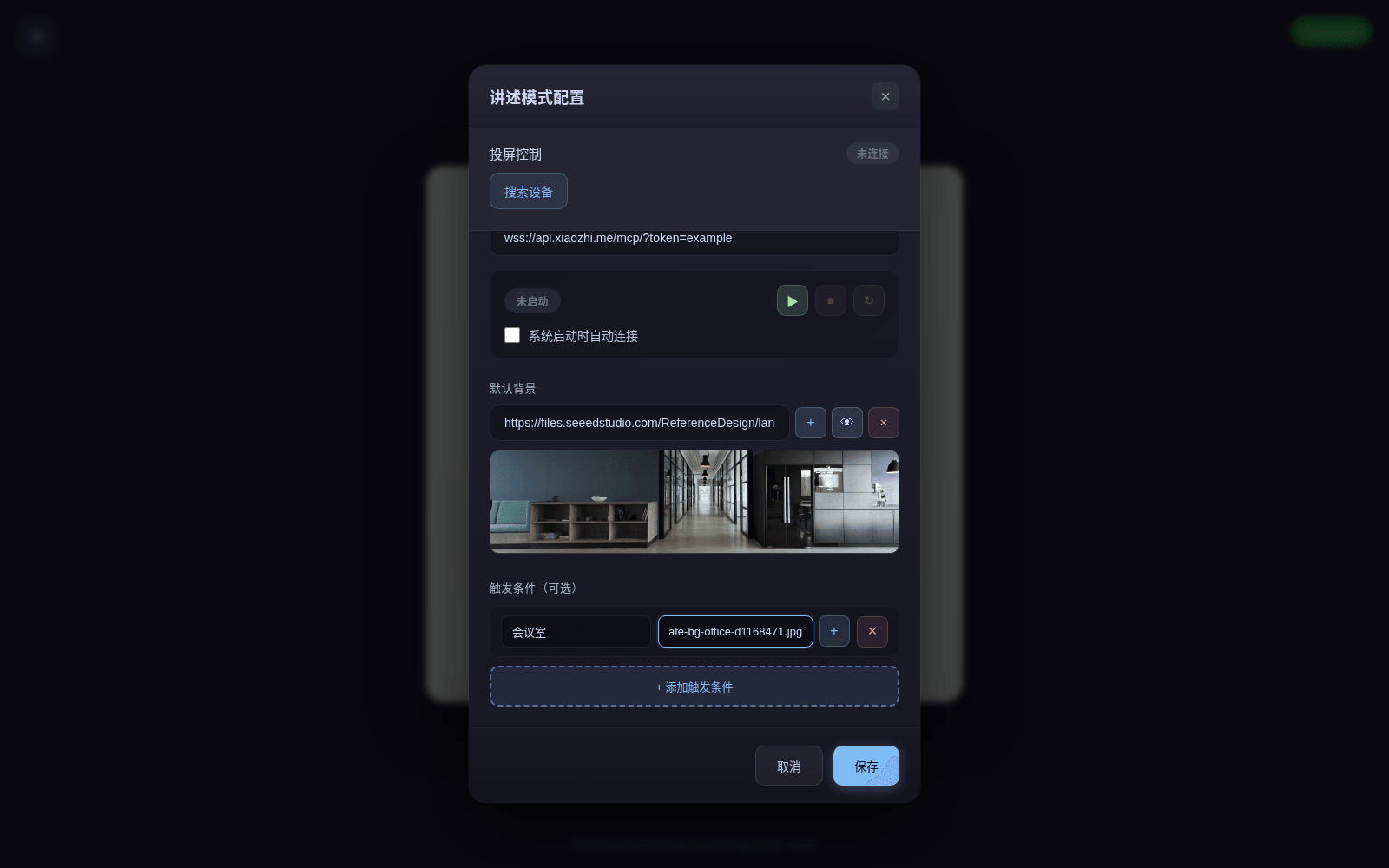
In familiar mode it only alerts on strangers and stops greeting known people one by one. Narrate mode: add keyword and image-URL pairs in the display page settings; when the conversation mentions a keyword, the background image changes. Useful for tours and presentations.
How to deploy
Tell us about your site — we work out the hardware, then you connect the data and follow the steps.
Configure yours
Tell us about the space — we work out the hardware.
Display Target
Where should people see the conversation? Each answer is a different firmware, so the device does one of these jobs at a time.
Configure yours
Tell us about the space — we work out the hardware.
Face Recognition
One SenseCAP Watcher with Xiaozhi and face recognition firmware. It greets enrolled people by name; faces are enrolled and managed from a web panel. Flashing needs a USB-C data cable.
硬件/物料名称 数量 型号/SKU 说明 SenseCAP Watcher 1 113991275 - Display Cast
A SenseCAP Watcher casts each conversation to your screen through the display service on your own computer. Narrate mode switches background images on keywords for guided tours.
硬件/物料名称 数量 型号/SKU 说明 SenseCAP Watcher 1 113991275 - Display Cast + Display Host
The same cast setup, with a reComputer R1100 that runs the display service and connects to the screen over HDMI.
硬件/物料名称 数量 型号/SKU 说明 SenseCAP Watcher 1 113991275 - reComputer R1100 1 113991374 - reTerminal D1001 Voice Agent
Xiaozhi on an 8-inch touch screen, with Wi-Fi set up on the screen, face wake from its camera, and a push panel on port 8080 for sending content and choices to the screen. Flashing needs a USB-C data cable.
硬件/物料名称 数量 型号/SKU 说明 reTerminal D1001 1 100058144 -
FAQ
Partly. Face recognition and the face list run on the device, so recognition keeps working offline. Voice conversation uses the Xiaozhi service and needs internet plus a bound account.
No. The face list is stored on the device, and enrolling or deleting happens in the local panel or by voice. The display service also runs on a host inside your own network.
It works best in normal indoor light with a frontal face; dim light and side views reduce accuracy. No field accuracy test or liveness check is part of this design, so it is not suited to access control, attendance or security use.
Each Watcher remembers up to 20 people. Screens are told apart by name — each display host gets a name at deploy time, and saying "cast to" that name connects the terminal to it.
2.4 GHz Wi-Fi, normal indoor light, and the terminal at face height facing the people it should see. Display Cast also needs a Docker host and an HDMI screen on the same network as the terminal.
The reTerminal D1001 push panel on port 8080 accepts text, images and choices pushed from outside, so a business system can put content on the screen. The display page is a plain web page that any screen with a browser can open.
Yes. Narrate mode takes keyword and image pairs and switches the background when a keyword comes up, which fits a showroom tour. The Xiaozhi firmware is open source and can be modified and reflashed.
The firmware comes from the open-source xiaozhi-esp32 project under the MIT licence. The Xiaozhi cloud service used for conversation and the face recognition model carry their own terms; confirm both before shipping.
Didn't find your answer?
Contact Us
We Are Glad to Be Your Hardware Partner !