Smart Warehouse Management — Deployment Guide

View source on GitHub
Preset

Tier 0 · Cloud

Only a SenseCAP Watcher is needed, no host. Inventory data and the voice service are hosted on the Seeed cloud.

  • Network: the Watcher needs 2.4GHz WiFi with internet access (5GHz is not supported).
  • Account: a SenseCraft account (free signup); the warehouse system is registered with the Watcher's device ID, with no separate admin account.
  • Limits: monthly subscription, data hosted on the Seeed cloud, no face recognition, no ERP/WMS integration.
1

Configure Watcher Device

Agent Setup

Connect your Watcher to SenseCraft cloud platform:

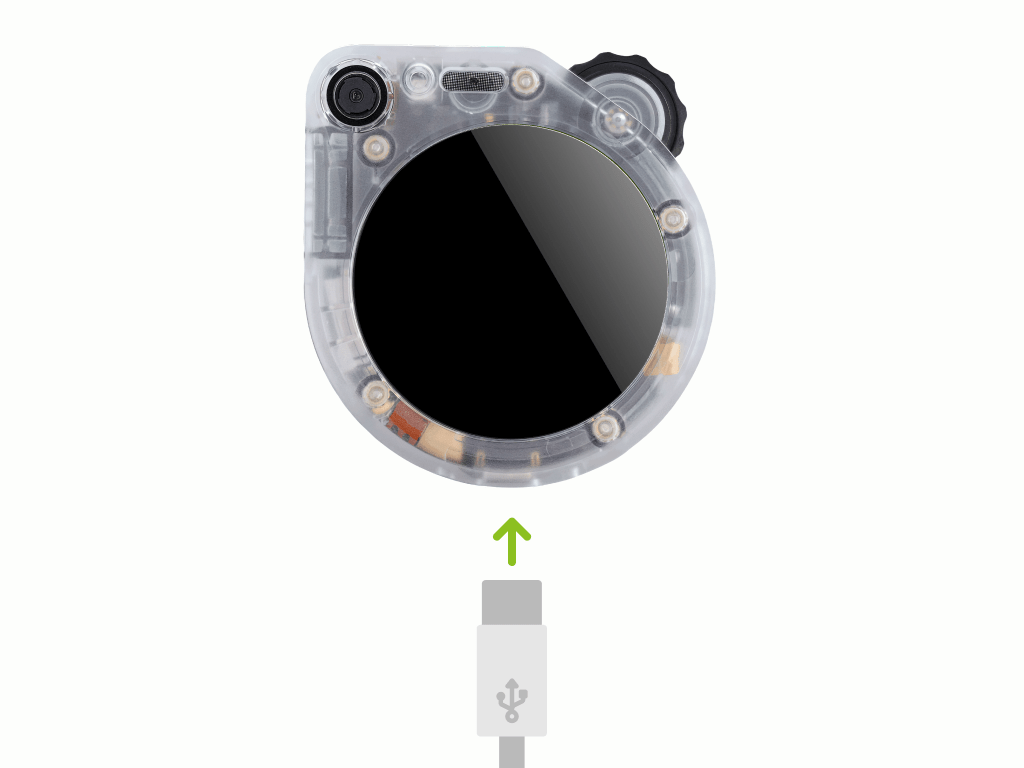
  1. Power on Watcher: press and hold the top-right scroll button for 5 seconds, then release
  2. On your phone, search for the WiFi hotspot named "Watcher-XXXX" and connect
  3. Your browser should pop up the setup page automatically (if not, visit http://192.168.42.1 manually)
  4. Wait about 5 seconds for the WiFi scan to complete, pick a 2.4GHz network, enter the password, then tap "Connect"
  5. The device reboots automatically and shows a 6-digit verification code on the screen

  6. Login to SenseCraft AI Platform, click "SenseCraft Watcher" in Models, select "Watcher Agent" → "Bind Device", and enter the 6-digit code to complete binding
  7. Click "Create" to make a new Agent, click the ⚙ settings icon on the Agent card, select the "Inventory Manager" role template, adjust name and language as needed, then save
Troubleshooting
SymptomAction
Can't find hotspotMake sure phone WiFi is enabled, move closer to Watcher
WiFi setup failedWatcher only supports 2.4GHz WiFi, check if your router has 2.4GHz enabled
Can't find Watcher AgentConfirm you're logged in to SenseCraft, refresh the page

2

Configure Warehouse System

Setup Demo

The warehouse system is hosted on Seeed cloud - no deployment needed. Open the cloud warehouse system to complete initial setup:

  1. Visit Warehouse System in your browser

  2. Click "Login" in the top right → "Watcher device users can self-register"
  3. Ask your Watcher "What is your device ID?" — Watcher will reply with an ID string
  4. Enter the device ID in the registration form, complete registration and log in
  5. Click "Inventory List" on the left to import existing inventory (Download Excel Template)
Troubleshooting
SymptomAction
Page won't loadCheck network connection and try again
Import failedCheck if Excel format matches the template
Forgot admin passwordGo to "Device Management", delete this app (check "Delete data"), then re-initialize

3

Connect to Agent

MCP Endpoint

Add an agent in the warehouse system to let Watcher control inventory:

  1. Open warehouse system at https://warehouse.seeed.cn/
  2. Go to "Agent Configuration" on the left sidebar, click "Add Agent", fill in the name
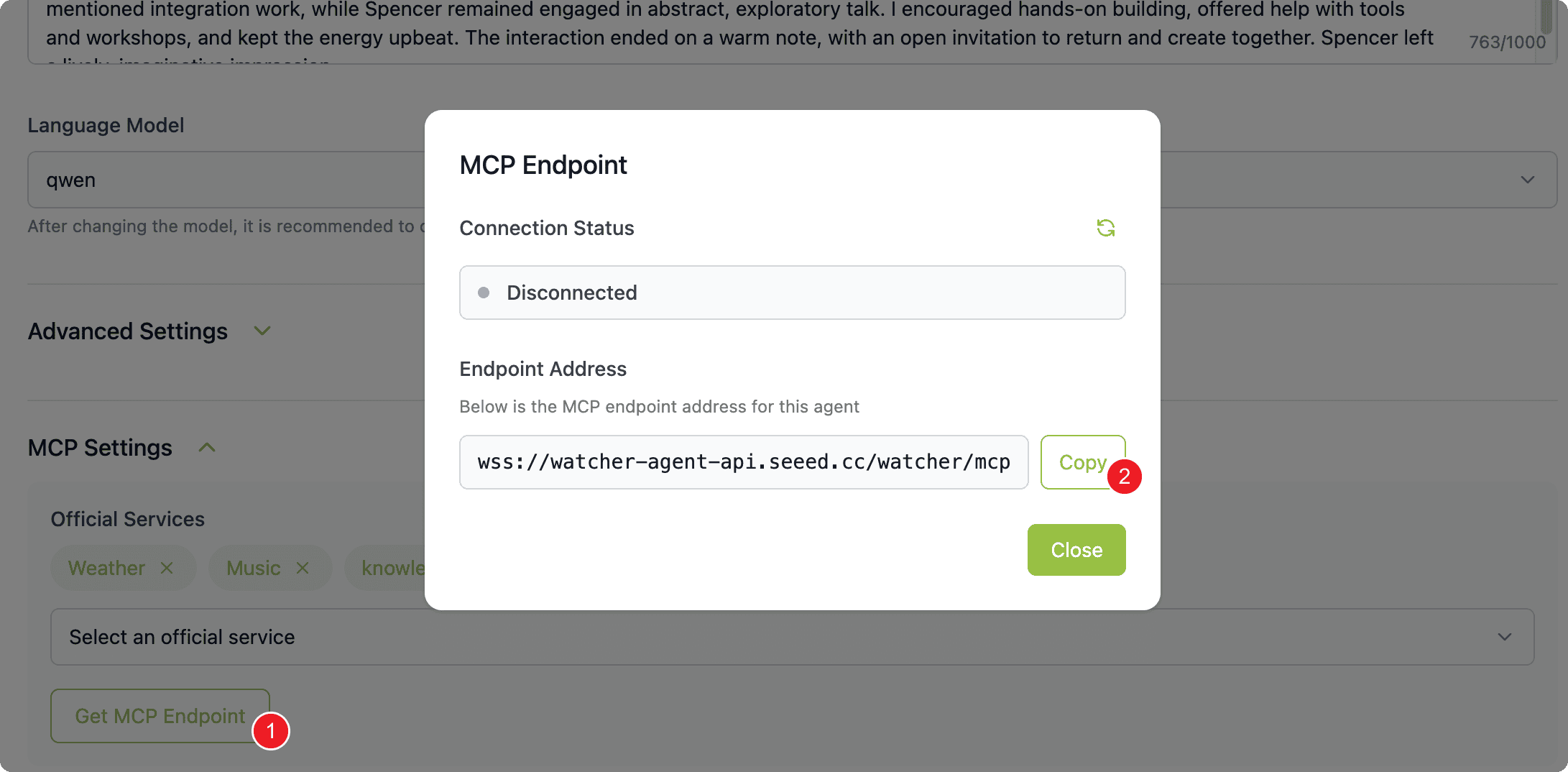
  3. Log into SenseCraft AI Platform, in the ⚙ settings page scroll to the bottom, click "MCP Setting" → "Get MCP Endpoint" → "Copy Endpoint URL"
  4. Paste the copied endpoint URL in the Endpoint field
  5. Click "Save and Start"
  6. Click "MCP Endpoint" on the agent card, refresh status - "Connected" means success
Troubleshooting
SymptomAction
Connection failedCheck endpoint URL is copied completely, no extra spaces
Status stays DisconnectedConfirm Watcher is properly bound to SenseCraft platform

4

Demo & Testing

Voice Stock-in Demo

Try these voice commands. To see the resulting inventory records, visit the SenseCraft platform at sensecraft.seeed.cc after speaking.

Say thisWatcher will
"How many apples left?"Query apple inventory count
"Stock in 10 boxes of apples"Add 10 boxes of apples to inventory
"Stock out 5 boxes of bananas"Remove 5 boxes of bananas from inventory
"What came in today?"List today's stock-in records
Troubleshooting
SymptomAction
Watcher not respondingConfirm the Agent is connected (status shows Connected)
Inventory not updatedRefresh the SenseCraft page to see latest data
Cannot see recordsConfirm your Watcher is bound to your SenseCraft account
Stock-in/stock-out fails while the network or service is downRequests made during the outage are not replayed; repeat them after recovery. Keep the server and Watchers on the same wired LAN where possible, and put the server on UPS power
After Deployment

Your SenseCraft trial is ready!

Access points:

Try saying "Stock in 10 boxes of apples" to test voice inventory management.

Acceptance checklist

  1. Agent connected — on the SenseCraft platform, the Agent card shows "Connected" for its MCP Endpoint status.
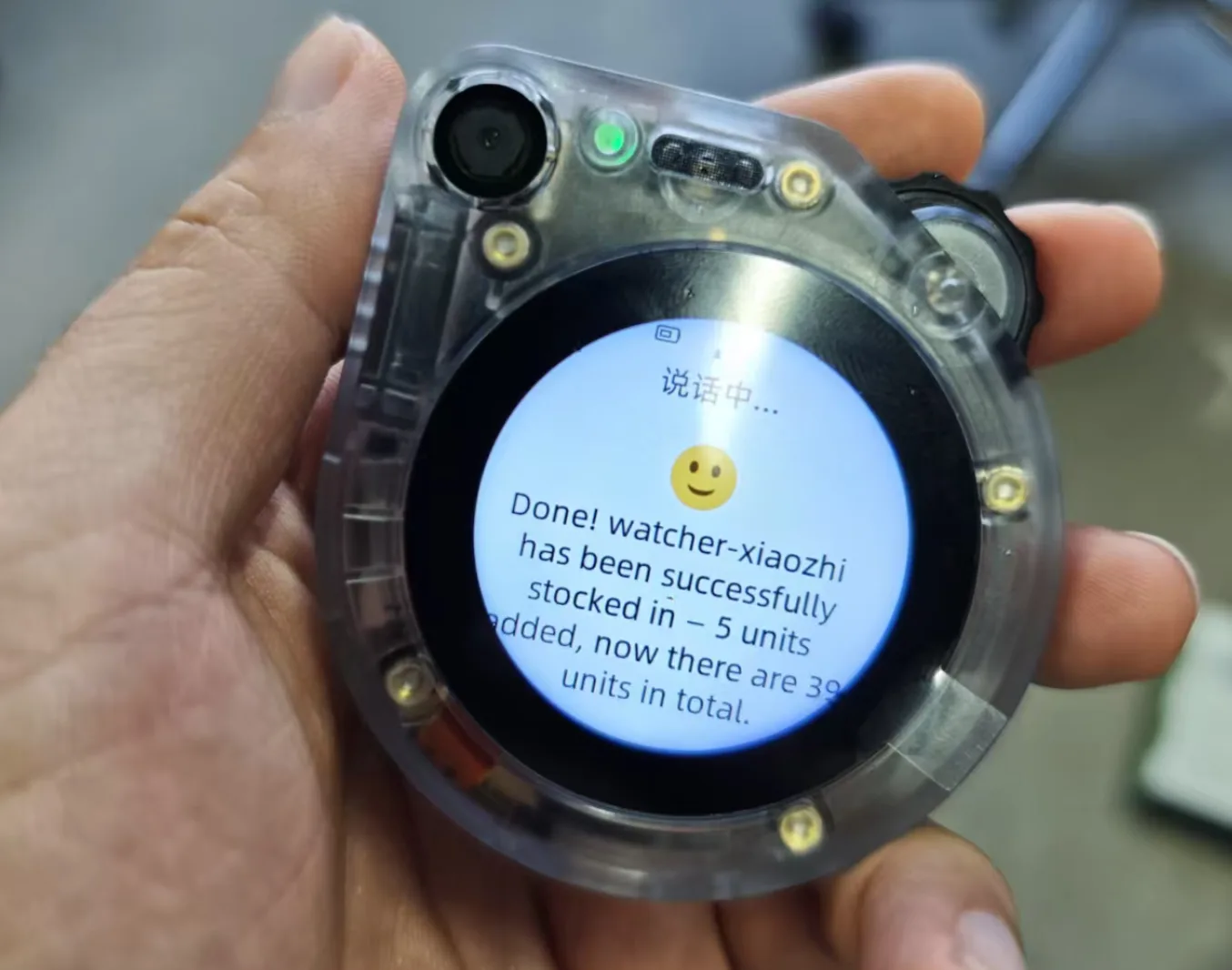
  2. Voice stock-in echoes back — say "Stock in 10 boxes of apples" to the Watcher; it replies confirming the item and new total within a few seconds.
  3. The record shows up — reload warehouse.seeed.cn and confirm the stock-in appears in today's records.
  4. A query works — say "How many apples left?" and confirm the count matches what you just stocked in.