Smart Retail People Flow Heatmap
Where shoppers walk and where they linger, drawn as a heatmap.
See which shelves attract customers, which aisles get ignored — works with reCamera, IP cameras + AI boxes, pick the best fit for your store
Reusable Site Templates
Indoor spaces where layout decisions depend on where people walk and stop, and the camera can be mounted high.
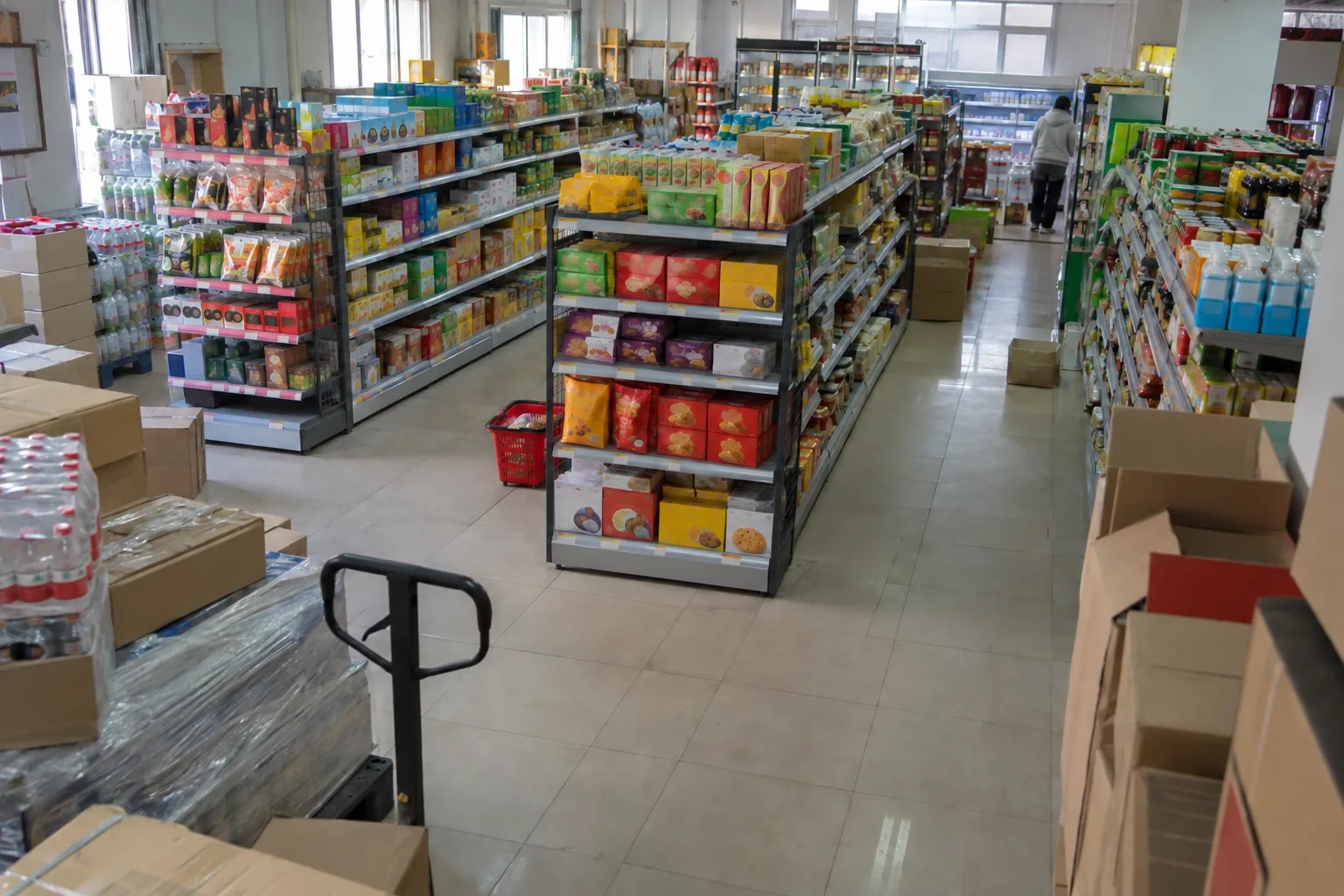
Retail stores
Convenience-store aisles, fitting-room entrances, supermarket end caps. See which shelves hold shoppers longest, then move the display.
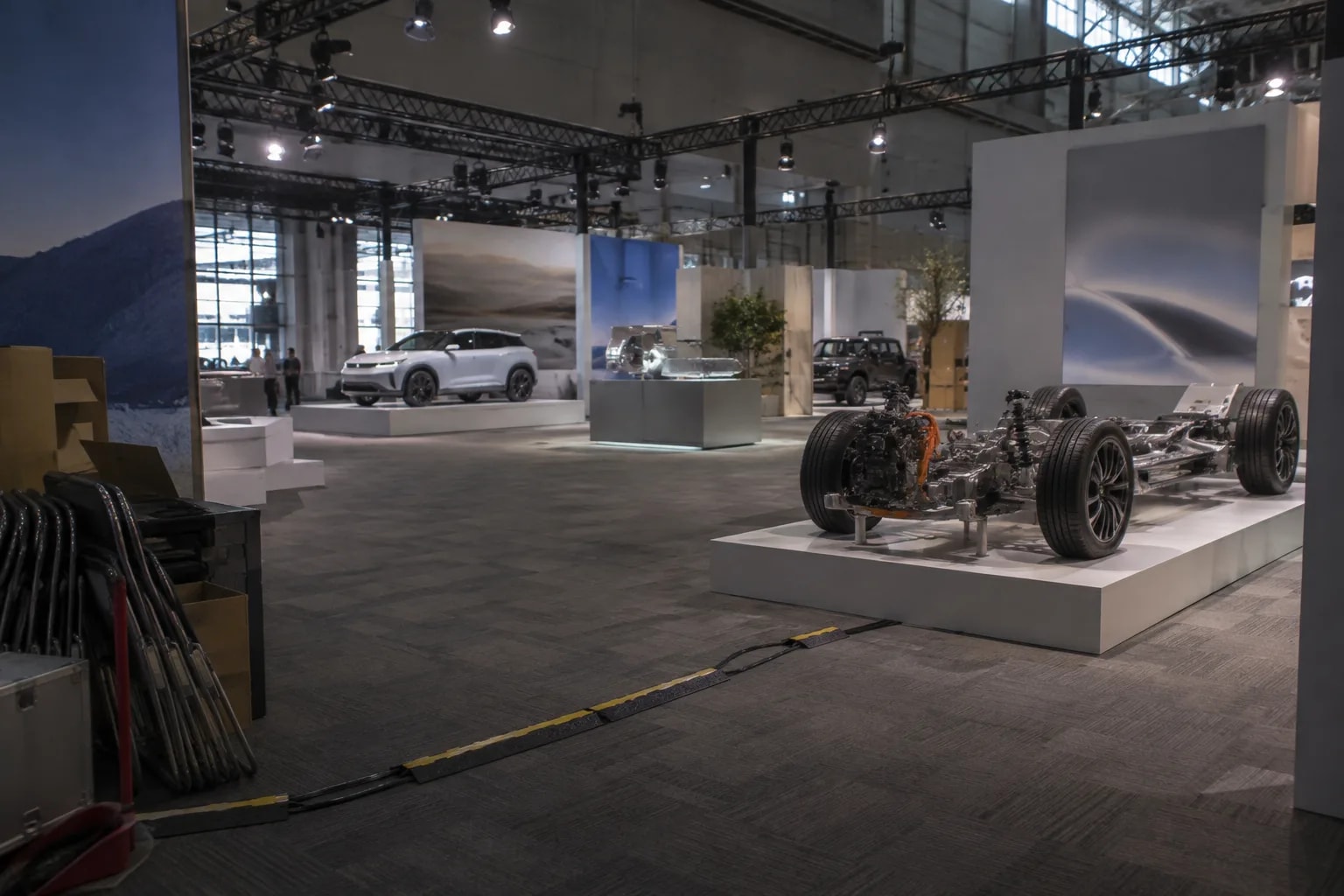
Exhibition halls and museums
Science-museum zones, auto-show stands, museum routes. Find the most visited exhibits and the paths between them.
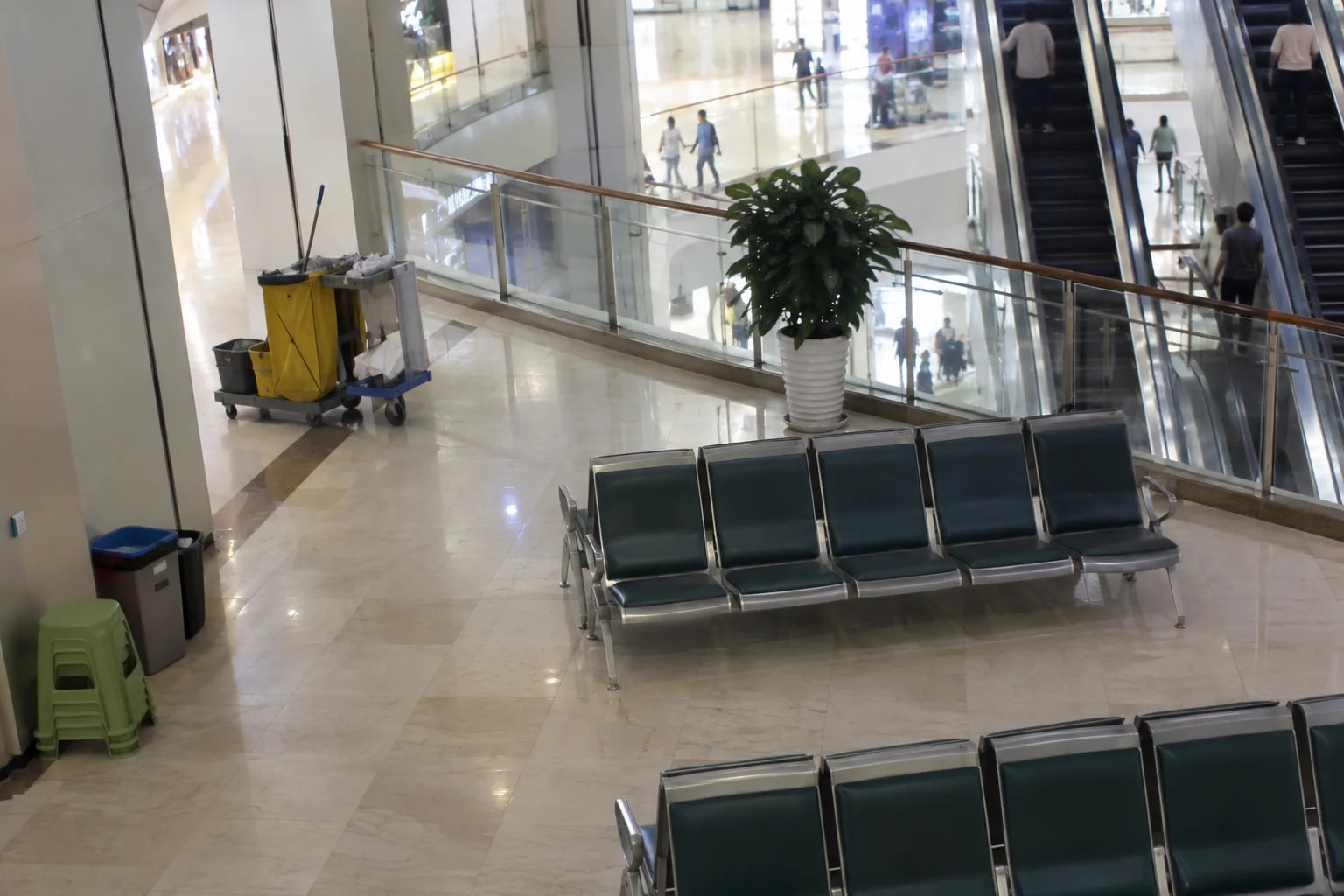
Public spaces with cameras already installed
Mall atriums, airport gate areas, library reading rooms. Keep the IP cameras and add an AI box beside them.
Not a fit: identifying who a person is, or counting outdoor crowds from far away. The camera needs a raised, downward view 3–5 m from the area it counts.
How it works
A downward-facing camera captures the scene, an AI host runs the detection, and a dashboard backend stores the numbers and draws the map. With reCamera the detection happens inside the camera, so no separate host is needed.
Three parts: a camera that sees the floor, something that detects people (the reCamera itself, or an AI host next to IP cameras), and one backend that stores and draws the data. Every detector sends positions and counts to the same backend, so one dashboard covers every camera. Video is processed on site; the backend keeps numbers, not footage.
Cameras
Two ways in, decided by what is already installed:
- No cameras yet → reCamera 2002 or reCamera Pro. Detection, tracking, dwell state and entry/exit counts run inside the camera. The analytics app takes the camera exclusively, so Node-RED on that camera stops.
- IP cameras already installed → keep them. Any camera with an RTSP stream works, and an AI host next to it does the detection.
Mount the camera high, looking down at the area to count, 3–5 m from the target. All devices must be on the same local network.
AI Host
Only the IP-camera presets need one. Every host runs the same tracking and dwell logic; the difference is the accelerator.
| Detection host | Accelerator | When to pick it |
|---|---|---|
| reCamera 2002 / reCamera Pro | Built-in NPU | One camera, no extra box |
| reComputer RK3588 / RK3576 | Rockchip NPU | You already run Rockchip boards |
| reComputer R2000 series (R2135-12, Hailo-8) | Hailo-8 | Compact industrial box; one Hailo app per accelerator |
| reComputer J40 / J50 series | Jetson Orin GPU | Several cameras on one host |
The Jetson preset builds its model on first deploy (2–5 minutes). The Hailo preset requires HailoRT 4.21. The RK preset needs the model that matches the board.
Dashboard Backend
One backend serves every preset. It can run on a laptop, a reComputer R1100, or the AI host itself.
Every detector sends its results over MQTT to this backend on the local network, and the dashboard and heatmap open in a browser on the same network.
Floor-plan calibration takes four reference points on a camera snapshot and four on the plan. Several calibrated cameras stack onto one shared floor plan.
The data interface is listed under What You Get below.
How well it works
The footfall dashboard and heatmap a store sees in the browser once it is running.
Measured results
Measured on live RTSP sources, from camera frames to results arriving at the backend.
| What the site gets | Typical | Device |
|---|---|---|
| Tracking frame rate per camera (15 FPS source) | 14.3 FPS | reComputer R2000 series (R2135-12, Hailo-8) |
| Tracking frame rate per camera | 13.2 FPS | reComputer RK3588 |
| Dashboard update rate | 1 message per second | reComputer RK3588 / RK3576 |
reComputer RK3576 measured 13.3 FPS on the same test. Video decode on the Rockchip boards runs in hardware, not on the CPU.
Limits: the heatmap shows where people are, not who they are. Accuracy depends on mounting height and view angle; calibrate against the floor plan with widely spaced landmarks such as pillars and doorways. For per-device tracking FPS and Grafana pipeline benchmarks, see Engineering Wiki · Retail Heatmap & Grafana Dashboard.
What you get out of it
Every detector publishes the same message format to the backend broker.
| Topic / port | Content | Retained |
|---|---|---|
<site>/retail-vision/results/<camera-id> | One batched JSON per second: zone counts (occupancy, browsing, engaged, needs assistance, entries, exits, average dwell) plus one entry per tracked person with position and dwell time | No |
<site>/retail-vision/status | online / offline | Yes |
| MQTT broker 1883 | Results from every detector | — |
| Grafana 3000 | People-flow trends by hour, day and week; dwell and entry/exit counts | — |
| Live heatmap 8080 | Heat overlay on the camera view or on your floor plan | — |
| Video gateway 1984 | Camera discovery and live preview | — |
<site> and <camera-id> are set at deploy time; use one site name per store and one ID per camera. Positions are percentages of the frame, so one floor-plan calibration works at any camera resolution. Data is stored in InfluxDB on the backend and can be queried or exported from Grafana.
How to deploy
Tell us about your site — we work out the hardware, then you connect the data and follow the steps.
Configure yours
Tell us about the store — we work out the hardware.
Existing Cameras
Are there IP cameras on site you can use? Cameras already on the wall are kept. Only the device that detects people changes.
Configure yours
Tell us about the store — we work out the hardware.
AI Camera Direct
A reCamera 2002 with 1080P video, for a nearby, small area, detects and tracks people in the camera and publishes over MQTT to the backend on your computer. No AI box. The analytics app takes the camera exclusively, so Node-RED on it stops.
硬件/物料名称 数量 型号/SKU 说明 reCamera 2002 1 102991895 - AI Camera Direct + Backend Server
The same camera, plus a reComputer R1100 running the broker, InfluxDB, Grafana and the video gateway. Cameras added later publish to the same backend.
硬件/物料名称 数量 型号/SKU 说明 reCamera 2002 1 102991895 - reComputer R1100 1 113991374 - reCamera Pro
One camera for a large or distant area — reCamera Pro records 4K video, so people far from the camera still take up enough of the frame to detect. Marked Beta upstream. The analytics app comes from the camera's App Center, not from this solution; the deployment step reports what is installed if the app is missing.
硬件/物料名称 数量 型号/SKU 说明 reCamera Pro 1 100092895 - reCamera Pro + Backend Server
reCamera Pro plus a reComputer R1100 running the broker, InfluxDB, Grafana and the video gateway.
硬件/物料名称 数量 型号/SKU 说明 reCamera Pro 1 100092895 - reComputer R1100 1 113991374 - IP Camera + Rockchip NPU
Keep the IP cameras; a reComputer RK3588 runs the detector on its NPU with hardware video decode. Measured at 13.2 FPS on a live stream (RK3576 13.3 FPS), one message per second to the backend, which can run on the same box.
硬件/物料名称 数量 型号/SKU 说明 reComputer RK3588 1 100071234 - IP Camera + reComputer Industrial R20 (Hailo)
Keep the IP cameras; a Hailo-8 in a reComputer Industrial R2000 runs the detector. Measured at 14.3 FPS on a 15 FPS live stream. Needs HailoRT 4.21, and no other Hailo app on the same accelerator. The backend can run on the same box.
硬件/物料名称 数量 型号/SKU 说明 reComputer R2000 Series (Hailo-8) 1 100020831 - Upgrade Existing Cameras
Keep the IP cameras and add a Jetson box that runs YOLO11n with TensorRT on the GPU — 9.7 ms per inference standalone. The model is built on first deploy, which takes 2–5 minutes. The backend can run on the same Jetson.
硬件/物料名称 数量 型号/SKU 说明 reComputer Super J4012 1 114110314 -
FAQ
No, once deployed. Detection runs on the camera or AI host, and the broker, database and dashboard run on the local backend. The internet is used only during deployment to pull images and models.
No. Video is processed on the camera or AI host; the backend stores positions, counts and dwell times, not footage. The live preview goes through the local video gateway and stays on your network.
On a 15 FPS RTSP source, reComputer R2000 series (Hailo-8) tracked at 14.3 FPS; reComputer RK3588 and RK3576 tracked at 13.2 and 13.3 FPS. Dashboard data arrives once per second.
One backend accepts any number of detectors, each identified by site name and camera ID. Frame rates above were measured on one stream per host; load-test your own camera count before sizing an AI host for several streams.
High, looking down at the area to count, about 3–5 m from the target. People should appear at least about 30 × 30 pixels in the frame. Cameras and backend must be on the same network.
Open the live heatmap on port 8080, upload a camera snapshot and the floor plan, and click four matching points on each. Calibration is saved on the server, and several cameras can share one plan.
Yes. Subscribe to the MQTT results topic for live data, or query InfluxDB on the backend. Grafana also exports panel data directly.
The detectors use YOLO-family person models (YOLO11n, YOLOv8n). Ultralytics YOLO models are AGPL-3.0 unless commercially licensed, so confirm model licences, or substitute a compatibly licensed model, before shipping a product.
Didn't find your answer?
Contact Us
We Are Glad to Be Your Hardware Partner !